A Long Description is a detailed textual explanation of a complex image, such as an engineering diagram, chart, or infographic. Unlike concise alt text, which offers a brief summary, a long description comprehensively conveys all essential visual information. This ensures full accessibility for individuals who cannot visually perceive or fully interpret the image. Complex images necessitate both short alt text (for immediate identification) and a comprehensive long description (for complete context and meaning). Long descriptions can be placed directly below the image, within an appendix, or linked to a separate page or document.
While long descriptions are specifically designed for images, for diagrams or figures that primarily present numerical or categorical data (e.g., graphs, charts, plots), it is often more effective to provide the data in an accessible table format in addition to, or as an alternative to, a long description.
Step 1: Use the Alt Tag and Long Description Generator
- Launch the Alt Tag and Long Description Generator.
- In the text box, click the plus symbol and then click “Upload or paste a single image.”
- Click the airplane icon in the Generator command line to initiate the process. The Generator will produce drafts of Alt Text and complex image descriptions for your review.
- Carefully proofread and edit the drafts as needed to ensure accuracy. Remember that Alt Text should be no longer than 120 characters in length.
Step 2: Add the Alt Text to the Image in Your Word Document
To ensure accuracy, proofread and edit the Alt Text as needed. Remember that Alt Tags should be no longer than 120 characters in length.
- Place your complex image where you want it to appear in the main body of your document.
- Highlight and Copy the Alt Text from Gemini.
- In your Word document, Right-click the image and select “View Alt Text.”
- In the Alt Text panel, paste the Alt Text from Gemini. This description should reflect what the image conveys to a student who cannot see it. A few reminders:
- Don’t say “image of” or “graphic of” within the description.
- End with a period (.) so screen readers pause after reading.
- If text is AI-generated, it must be reviewed & confirmed by a human!

- Click image to see Layout Options icon at the top-right. Click the icon and set image’s layout to “In Line with Text.”

Step 3: Add Long Descriptions to an Appendix in a Word Document
To ensure accuracy, proofread and edit the Long Description as needed. There are a variety of ways to apply the long description. The steps below describe the method for adding the Long Description to an Appendix of a Word document with hyperlinks connecting to the Long Description and back to the image.
3.1 Prepare the Document Locations
First, you need to set up the locations for both the image and the long description.
- Create the Appendix: Scroll to the end of your document and start a new section for your Appendix. Give it a clear heading (e.g., Appendix A: Detailed Image Descriptions) using proper heading hierarchy.
- For more information on heading hierarchy see the Word Accessibility Cheat Sheet.
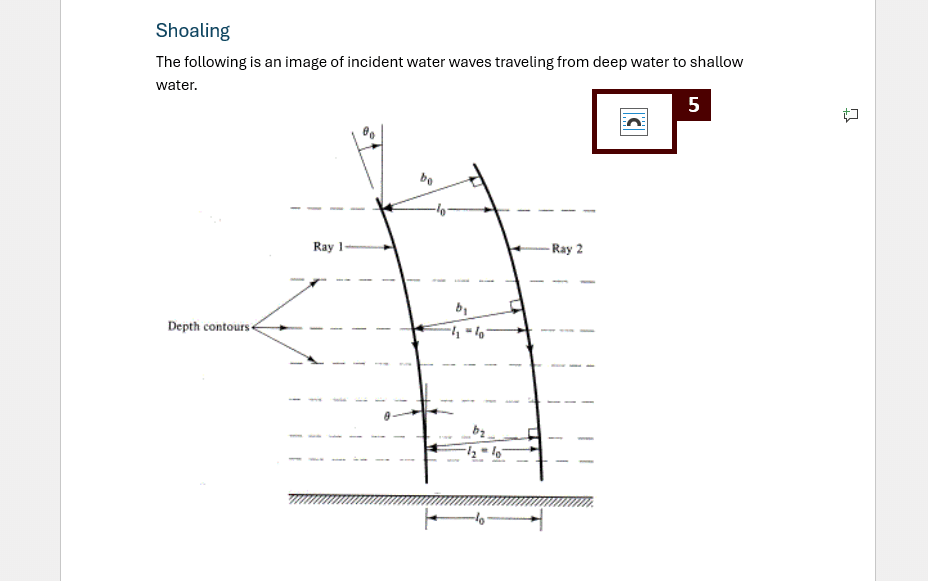
- Paste the Long Description Text: Under the Appendix heading, give the description a specific title using proper heading hierarchy (e.g., Long Description for Figure 5). Paste the text generated by Gemini for the Long Description.
3.2 Create the Bookmarks (The Anchors)
The bookmarks are the “anchors” that the hyperlinks will point to. You’ll need one bookmark at the image and one at the description.
- Bookmark the Image Location
- Place your cursor directly on the blank line immediately below the image in the main document.
- Go to the Insert tab on the Ribbon.
- Click Bookmark.
- In the Bookmark dialog box, enter a clear, single-word name (no spaces) for the image location, such as Image_Start or Figure5.
- Click Add.


- Bookmark the Description Location
- Go to the Appendix. Place your cursor directly on the blank line immediately before your long description text.
- Go to the Insert tab and click Bookmark again.
- Enter a corresponding name, such as Desc_Start or Figure5_Desc.
- Click Add.
3.3 Create the “Long Description” Link (Image to Appendix)
Now, you will create the link under the image that takes the user to the Appendix.
- Under your image in the main document, type the title you used in Step 3.1.2, preceded by the word View. For example: View Long Description for Figure 5.
- Select the text View Long Description for Figure 5.
- Right-click the selected text and choose Link (or go to the Insert tab and click Link).

- In the Insert Hyperlink dialog box, click Place in This Document on the left menu.
- Under the Bookmarks list, find and select the bookmark you created for the description (Figure5_Desc in our example).
- Click OK.

3.4 Create the “Return to Image” Link (Appendix to Image)
Finally, you will create the link at the end of the Appendix entry that takes the user back to the image.
- Go to the end of your long description text in the Appendix.
- Type the text: Return to Image, if not already included in the Gemini description.
- Select the text Return to Image.
- Right-click and choose Link (or go to the Insert tab and click Link).
- In the Insert Hyperlink dialog box, click Place in This Document.
- Under the Bookmarks list, find and select the bookmark you created for the image (Figure5 in our example).
- Click OK.
You now have a fully accessible, two-way navigational system! Students can click the link under the complex image to read the full description, and then easily jump right back to the image to see the visual context.
For additional ideas about how to use Long Descriptions, see the Complex Images | Web Accessibility Initiative (WAI) | W3C guide.
Step 4: Finalize Your Document
Now that you have a process for creating and applying Alt Text and Long Descriptions, you can repeat this process for each complex image in your document. It is not necessary to re-prompt Gemini; simply upload your next complex image.
After you have added the Long Descriptions for all of your images, you will want to check the document’s accessibility in Word. For information on how to use the accessibility checker, see the Word Accessibility Checker Tutorial.
If you plan to convert the document to a PDF or upload it to Canvas, you can also complete the optional accessibility checks for those platforms.
- PDF
- Convert the document to an accessible PDF. For more information on how to properly convert the document see the PDF Conversion Tutorial.
- Open the document in Adobe Acrobat and use the built-in accessibility checker. For information on how to use the accessibility checker, visit the Adobe Acrobat Accessibility Guide.
- Canvas
- If the document is being uploaded to Canvas, use the embedded Ally Accessibility Report. For information on how to use this report, watch the Ally Accessibility Report Video.
Conclusion
Adding Long Descriptions for complex images can greatly improve the usefulness and accessibility of digital instructional materials.

Leave a Reply